Capture or import
Photograph a receipt or choose an existing image. The camera requests continuous receipt lighting when the device supports it.
Taxora support
Find answers for receipt capture, field review, local storage, and exports. Taxora V1 works without an account or subscription.
Start here
Every receipt follows the same local-first flow. Review the extracted fields before relying on them for bookkeeping or tax preparation.
Photograph a receipt or choose an existing image. The camera requests continuous receipt lighting when the device supports it.
Compare the image with merchant, date, time, address, HST/GST, subtotal, tax, tip, and total. Correct anything that looks wrong.
Keep the confirmed record on your device. Export CSV, PDF, or ZIP files when you need to share or preserve your records.
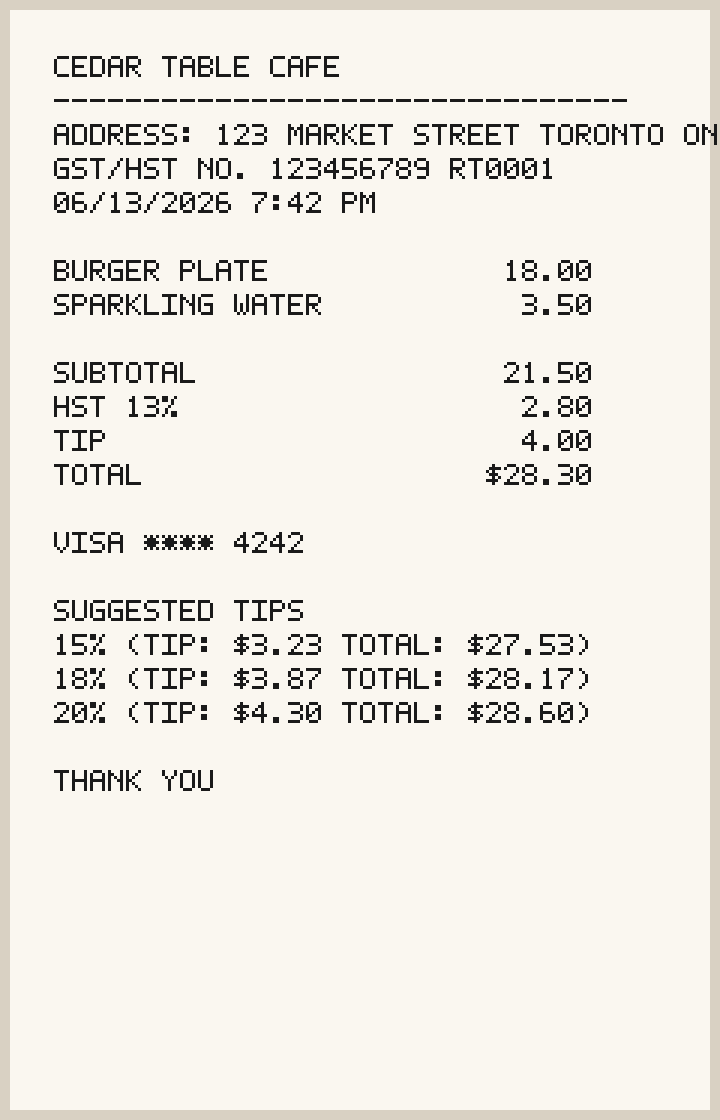
Review before saving
Optical character recognition can make mistakes, especially with faded paper, folds, glare, handwriting, or unusual layouts. Taxora keeps the original image beside the extracted fields so you can confirm the record.
Common questions
These answers describe Taxora V1 for iOS and Android.
Receipt images, confirmed fields, settings, and audit history are stored locally in Taxora's private app storage. Taxora V1 does not require an account or operate cloud receipt storage.
Open Review Extraction, compare the field with the receipt image, edit the value, and then confirm. For a saved receipt, open its details to review the image and record.
Taxora requests the rear-camera torch during receipt framing and capture when the device supports it. Even lighting usually gives the on-device OCR a clearer image. The app records a local fallback when the light is unavailable or cannot turn on.
Yes. Location capture is optional. Turn it off in Taxora settings or deny the foreground location permission in your device settings. Receipt capture and import continue without location.
No third-party cloud AI service is required for core extraction. iOS uses Apple Vision on the device. Android uses bundled PaddleOCR and may use an on-device ML Kit text-recognition fallback when needed.
Create a ZIP export and store it somewhere you control before deleting Taxora, clearing app data, or replacing your phone. Taxora V1 does not provide automatic cloud backup.
No. Taxora V1 has no account, login, paid subscription, or required cloud service.
Taxora's OCR and parser support English, Chinese, and bilingual receipt text. This does not translate the app interface or guarantee that every receipt layout will be recognized correctly.
Troubleshooting
Keep the original receipt until you have confirmed the saved record and export.
Open your device settings and allow camera access for Taxora. You can still use Import if you prefer to select an existing receipt image.
Flatten the receipt, fill the frame, avoid blur, and retake the photo. Use Review Extraction or manual entry when the paper is faded or damaged.
Check whether the receipt contains suggested tips, multiple tax lines, refunds, or a paid-total line. Correct the field before confirming it.
Confirm the device has available storage and that a compatible sharing destination is installed. Retry the export after closing other apps.
Email taxora-support@halionix.com. Include your device model, operating-system version, Taxora version, and the step that failed. Redact personal receipt details before attaching an image.